Summarization
We are going to sum up the documents that we have in the folder “documents”. The pdfs from this lesson are located on the path “/fp/projects01/ec443/documents”. In task number 2 in the chapter on “Getting started”, you were asked to make your own documents folder in your home directory. In case you did not get the time, you will now get a second chance. Do the task below, if not done before:
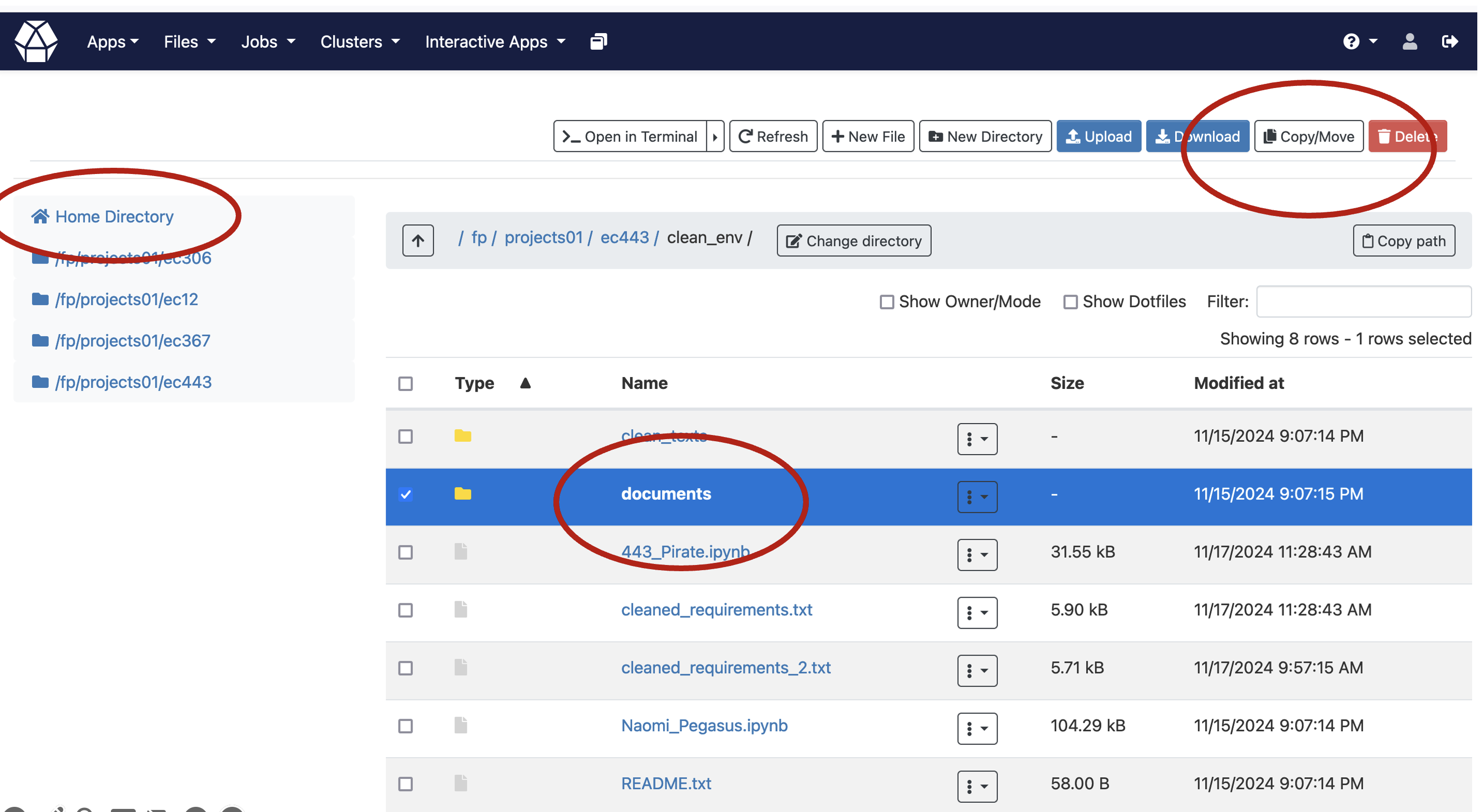
The easiest way doing this, is to use the browser view for Fox. The idea is that you are a researcher with a specific subject in mind. In this case, there was a search for “terrorism” and “western europe” in DOAJ.
Task 5.1:
Copy all of the content from this path:
/fp/projects01/ec443/documents, and move it into your own documents folder named “documents” on your own home directory.
Task 5.2:
JupyterLab uses a Python kernel to execute the code in each notebook. To free up GPU memory from the previous chapter, you should stop the kernel for that notebook. In the menu on the left side of JupyterLab, click the dark circle with a white square in it. Then click KERNELS and Shut Down All.
Cell 1:
document_folder = '/fp/projects01/ec443/documents/terrorism'
Repeating the location of the models, just in case
Cell 2:
import os
os.environ['HF_HOME'] = '/fp/projects01/ec443/huggingface/cache/'
We want to check if we have a GPU available.
Cell 3:
import torch
device = 0 if torch.cuda.is_available() else -1
Cell 4:
from langchain_huggingface.llms import HuggingFacePipeline

llm = HuggingFacePipeline.from_model_id(
      model_id='mistralai/Ministral-8B-Instruct-2410',
      task='text-generation',
      device=0,
      pipeline_kwargs={
          'max_new_tokens': 1000,
          #'do_sample': True,
          #'temperature': 0.3,
          #'num_beams': 4,
      }
  )
We can give some arguments to the pipeline:
model_id: the name of the model on HuggingFacetask: the task you want to use the model fordevice: the GPU hardware device to use. If we don’t specify a device, no GPU will be used.pipeline_kwargs: additional parameters that are passed to the model.max_new_tokens: maximum length of the generated textdo_sample: ifFalse, the most likely next word is chosen. This makes the output deterministic. We can introduce some randomness by sampling among the most likely words instead. The default value seems to beTrue.temperature: the temperature controls the statistical distribution of the next word and is usually between 0 and 1. A low temperature increases the probability of common words. A high temperature increases the probability of outputting a rare word. Model makers often recommend a temperature setting, which we can use as a starting point.num_beams: by default the model works with a single sequence of tokens/words. With beam search, the program builds multiple sequences at the same time, and then selects the best one in the end.
Making a prompt
Cell 5:
from langchain_classic.chains.combine_documents import create_stuff_documents_chain
from langchain_classic.chains.llm import LLMChain
from langchain_classic.prompts import PromptTemplate
Cell 6:
separator = '\nYour Summary:\n'
prompt_template = '''Write a summary of the following:

{context}
''' + separator
prompt = PromptTemplate(template=prompt_template,
                        input_variables=['context'])
Separating the Summary from the Input
LangChain returns both the input prompt and the generated response in one long text. To get only the summary, we must split the summary from the document that we sent as input. We can use the LangChain output parser RegexParser for this.
Cell 6:
from langchain_classic.output_parsers import RegexParser
import re

output_parser = RegexParser(
    regex=rf'{separator}(.*)',
    output_keys=['summary'],
    flags=re.DOTALL)
Create chain
The document loader loads each PDF page as a separate ‘document’. This is partly for technical reasons because that is the way PDFs are structured. Therefore, we use the chain called create_stuff_documents_chain which joins multiple documents into a single large document.
Cell 7:
# chain = create_stuff_documents_chain(
#        llm, prompt, output_parser=output_parser)

chain = create_stuff_documents_chain(llm, prompt)
A function to split the summary from the input. LangChain returns both the input prompt and the generated response in one long text. To get only the summary, we must split the summary from the document that we sent as input.
Cell 8:
def split_result(result):
    "Split the reply from the prompt, should be done with output parser?"
    position = result.find(separator)
    summary = result[position + len(separator) :]
    return summary
Loading the Documents
We use LangChain’s DirectoryLoader to load all in files in document_folder. document_folder is defined at the start of this Notebook.
Cell 8:
from langchain_community.document_loaders import DirectoryLoader

loader = DirectoryLoader(document_folder)
documents = loader.load()
print('number of documents:', len(documents))
Creating the Summaries
Now, we can iterate over these documents with a for-loop.
Cell 9:
summaries = {}

for document in documents:
    filename = document.metadata['source']
    print(filename)
    summary = chain.invoke({"context": [document]})
    summary = split_result(summary)
    summaries[filename] = summary
    print('Summary of file', filename)
    print(summary)
Saving the Summaries to Text Files
Finally, we save the summaries for later use. In the example below, we save all the summaries in the file summaries.txt.
Cell 10:
with open('summaries_2.txt', 'w') as outfile:
    for filename in summaries:
        print('Summary of ', filename, file = outfile)
        print(summaries[filename], file=outfile)
        print(file=outfile)
Make an overall summary
See here under bonus material
Task 5.3:
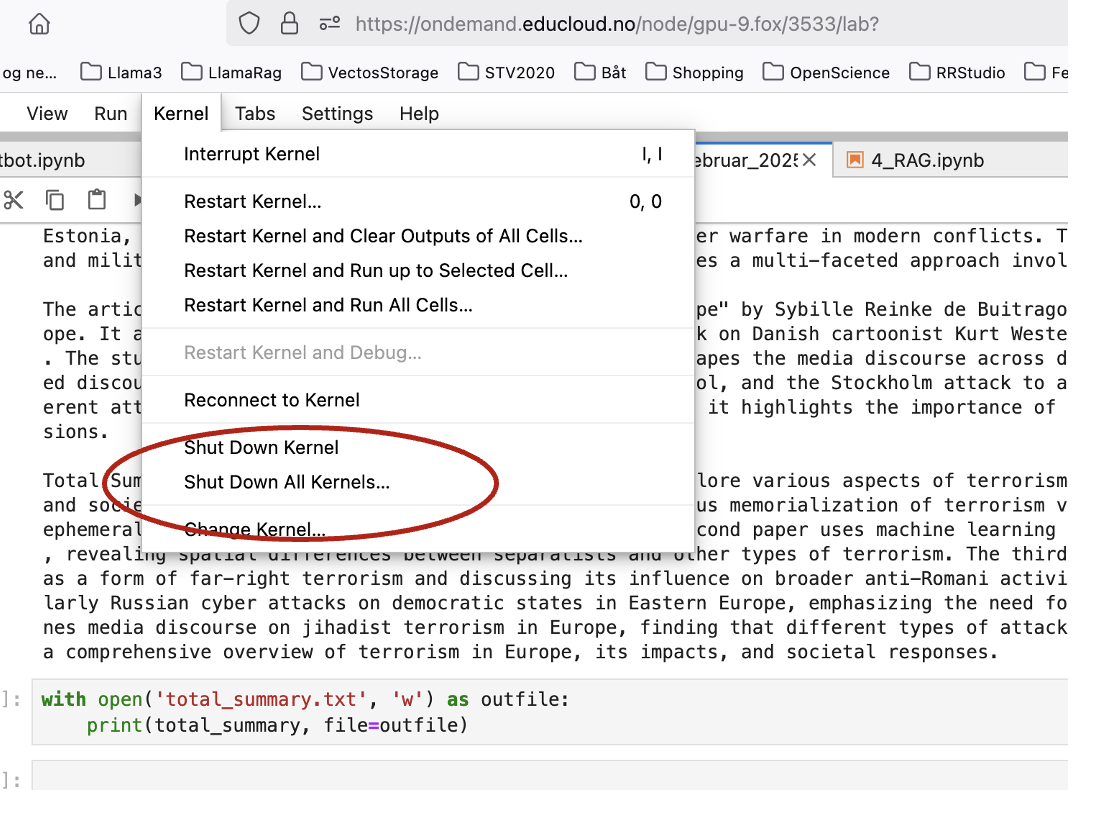
The processes of the Chapters Chatbot and Summarization, may be done on the largest and the second largest GPU at Fox (40GB memory). As we advance to the next chapter with RAG, we depend on the largest GPU with its 80GB memory. Make sure you have your job running on the mentioned GPU resource. Also go to the menu in Jupyter lab, and choose as shown in the illustration below: Kernel –> Shut down all kernels. Now, you are going to open a new workbook, save it with a name you choose, and run the RAG process in that new document, without any other content in the cells.
Task 5.4:
How can you see if a single kernel is running and how do you shut them down one by one?