Preparations
You have done this already: Sign up for the course.
First time users of Educloud
Log in with Your bank ID and apply for membership in project code ec443
Set up Authentication with Microsoft authenticator
If you do not have Microsoft Authenticator, you can download from App Store (iPhone) or Google Play (Android)
Make your two factor work with the QR code. Follow this recipe.
Setting the password: Here is how.
You should have your Microsoft Authenticator open, and at the same time have the screen open with login on “Change your OTP”. You need to have your mobile camera enabled.
In the Authenticator –> Home –> Microsoft entra ID –> Konfigurer totrinnsbekreftelse
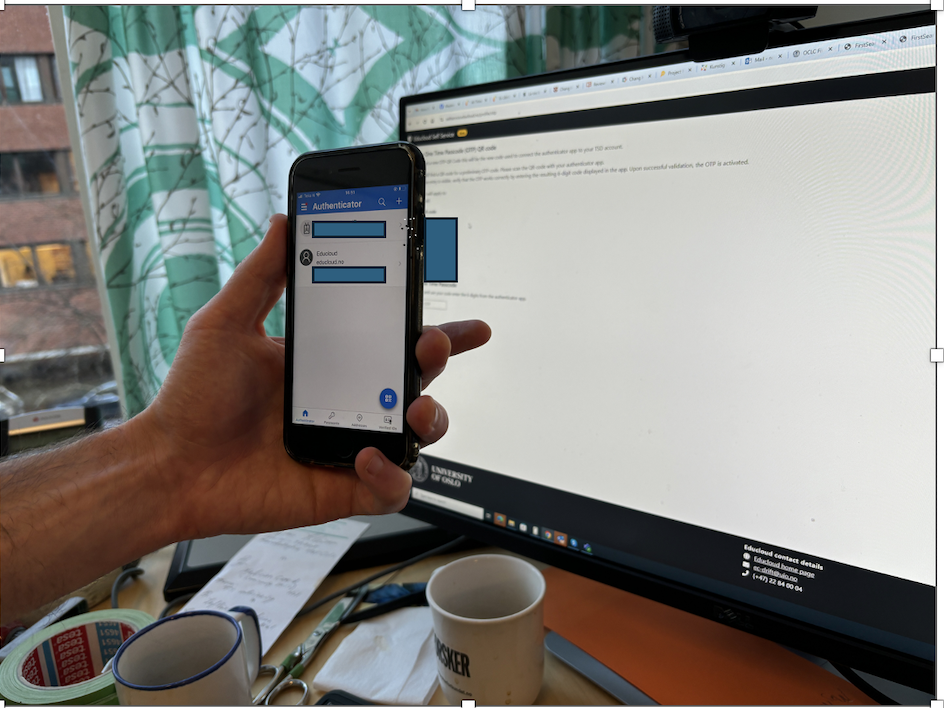
Read the whole page down
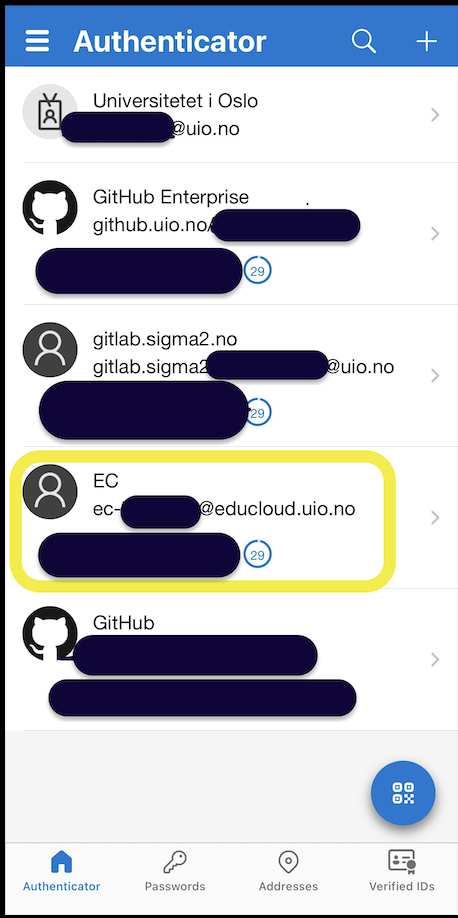
Note that you may have different sites on your phone, that generate separate codes. Below, you can see an example of how the phone of an advanced user may look like. The Educloud assess is marked with yellow.
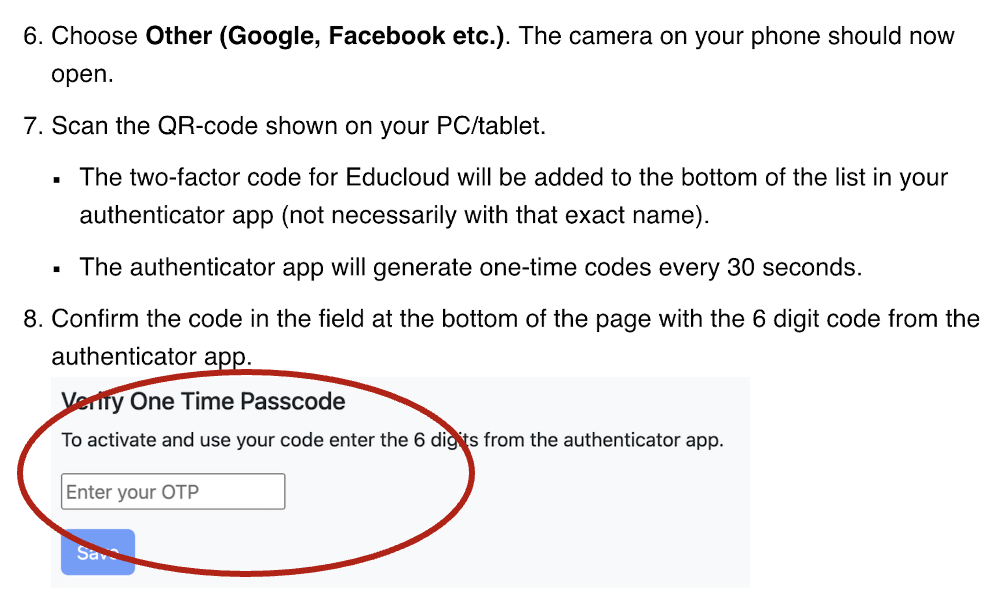
You will succed in your setup, if you read the whole page down, because the most important step is explained at the bottom of the page:
Already users on Educloud and for first time users that have created an user in Educloud:
apply for project membership to ec443
send email to Ragnhild with heading “I applied for membership in ec443”
when the project manager has approved of your application, log in to Educloud with your two factor authenticator.
Final step - Is it working?
mark that your educloud username might be different from your other UiO password, and ask on the email above, if in doubt.
try your setup on Educloud on demand
try your setup on Educloud on demand